

 Doc Summary

Introduction #
In this doc you will find usefull information regarding your Satisfactory Game Server at ProRedLine. After reading this doc, you’ll know how to configure your server, claiming the server in-game, and more.
Startup & Setup #
Once the server has been created, you will need to configure it before it can run as expected.
On your server’s dashboard, go to the “Startup” tab. Here, you will find several settings that you can configure according to your specific needs. Below is a list of options available for your Satisfactory server in the “Startup” tab:
- STARTUP COMMAND and DOCKER IMAGE are read-only variables and cannot be modified.
Variables #
- AUTOMATIC UPDATES. Checks for any server updates upon startup. Default is enabled.
- [REPAIR] VALIDATE SERVER FILES. If you are experiencing problems with your server files, set this to “true” or “1” to validate all the server files upon startup. This will replace any corrupted or missing files. Disable this option when finished by leaving the field blank.
- NUMBER OF ROTATING AUTOSAVES. Number of auto saves to keep on the server before the oldest save is deleted, and the others moved down the list.
- [EXPERIMENTAL] MAX PLAYERS. This is the maximum number of players allowed on the server at the same time. We do not recommend changing this value as it can impact your server’s performance. Satisfactory supports max 4 players, if you change this value to anything higher than 4 players, it can seriously affect your server’s performance.
- [ADVANCED] CLIENT INITIAL CONNECTION TIMEOUT. Time in seconds to wait for a new client connection to be established before destroying the connection.
- [ADVANCED] CLIENT ESTABLISHED CONNECTION TIMEOUT. Time in seconds to wait before considering an established client connection timed out.
- [ADVANCED] BRANCH NAME. Change the branch to public or experimental. We recommend leaving this option at public.
Starting your server #
Once everything is set up, you can start the server from the “Console” tab by clicking “Start”. Please allow some time for the server to start.
Changing Configurations #
If you wish to change settings not listed in the Variables section, you can edit the server’s settings in-game. However, be aware that any changes to the server settings that correspond to settings in the Startup tab will be overwritten by the Variables options. Therefore, it’s recommended to only modify the server settings for settings not available in the Startup tab.
In-game Setup #
Claiming server #
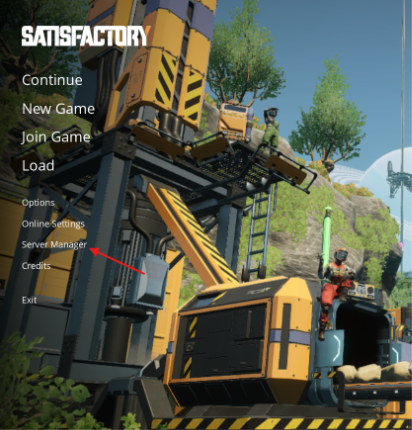
This step is important. Once your server has been installed and setup on the ProRedLine dashboard, you will need to claim your server and finish the setup process in-game. On the home page of Satisfactory, open the “Server Manager”.
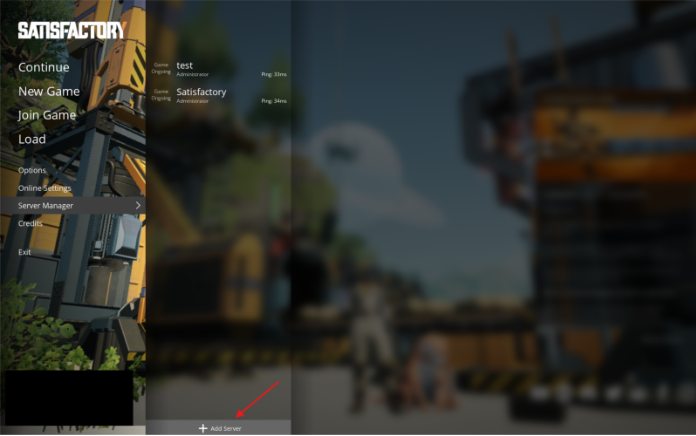
- Press the “Add Server” button on the bottom of the Server Manager tab.
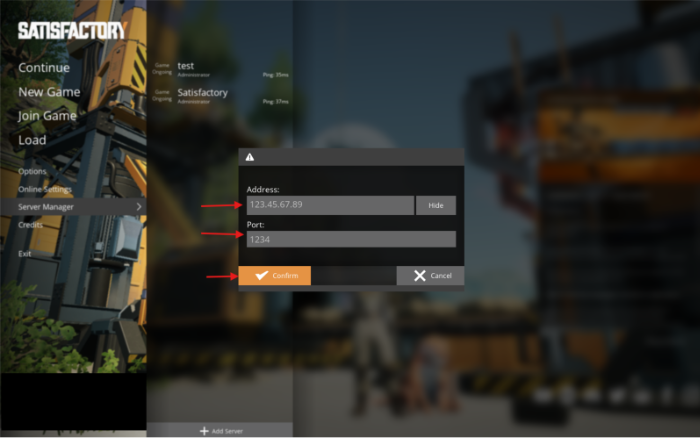
- Now you will be asked for your server’s IP and Port. You can find this on your ProRedLine server dashboard. On your dashboard the server’s address will look like 123.45.67.89:1234. The IP is are the numbers before : (so in this case 123.45.67.89) and the Port are the numbers after : (So in this case 1234). When filled in, click on “Confirm”.
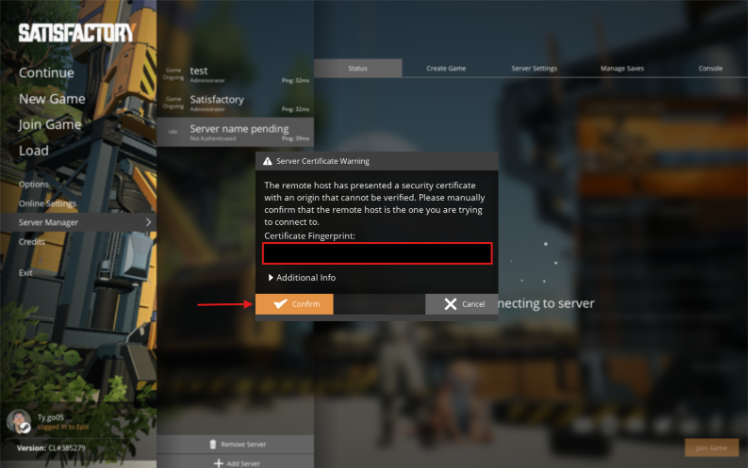
- After clicking “Confirm”, a popup will follow asking if you want to manually confirm the server certificate. Click on “Confirm”.
- Another popup will follow telling you the server is unclaimed and asking to follow a couple of steps. In this popup a friendly server name will be asked. Fill this in with a name you like and click “Confirm”.
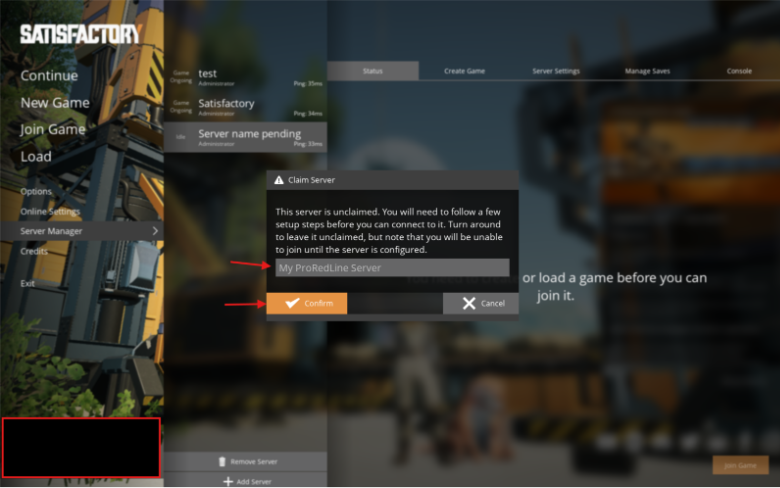
- Now another popup follows asking to set up an Admin Password. This password is used to gain access to your server’s in-game settings in the case you accidentally delete your server from the Server Manager. Make sure it’s a secure password as other users can try gaining access to your server’s in-game settings.
Creating game #
Once you have set up the password, you are automatically an Administrator. Now you will be on a page telling you need to create or load a game before you can join it. You can either create a fresh map or load one of your existing saves.
- Creating fresh map: Head over to the “Create Game” tab. Select the map you would like to play on, enter its session name and click “Start Game”. This will start the installment process on the server. This can take up to 5 minutes. In the meantime, you will see a loading icon on the server’s in-game settings page.
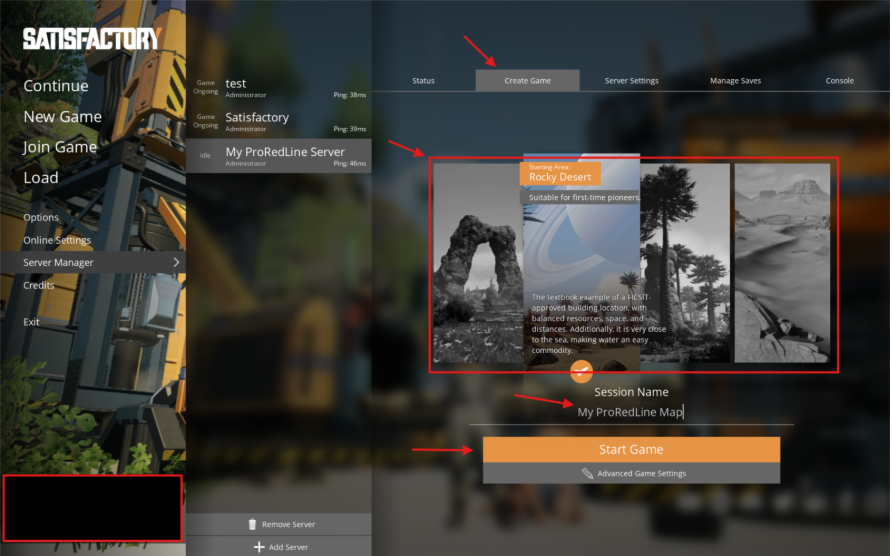
- Using your existing local saves:
- Head over to the “Manage Saves” tab. Within this tab, select the “Upload Save” tab. Select one of your existing saves and click on “Upload Game”.
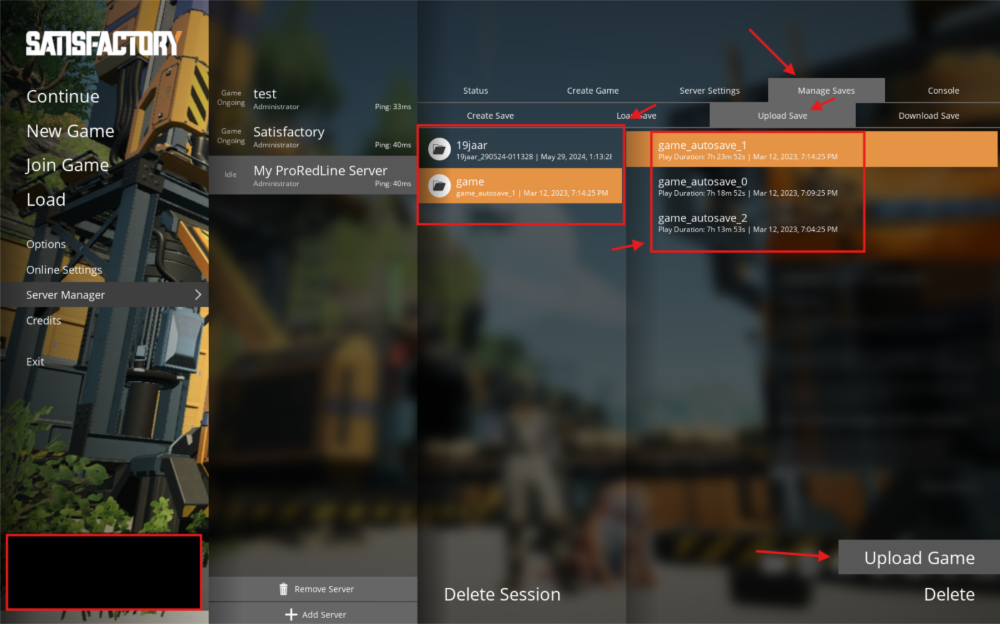
- Your existing local save has now been uploaded to the server. Now head over to the “Load Save” tab within the “Manage Saves” tab. Locate and select your uploaded save and click on “Load Game”. Now the server will start loading your save into an active session on the server. This process can take up to 5 minutes. In the meantime, you will see a loading icon on the server’s in-game settings page.
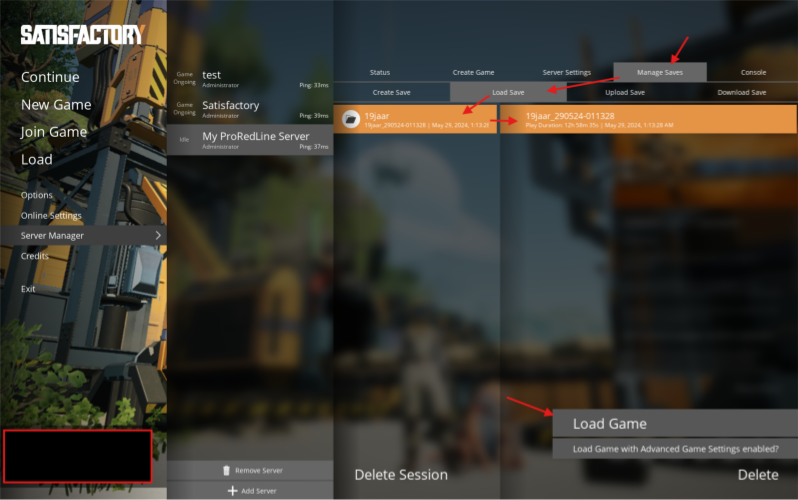
After setup #
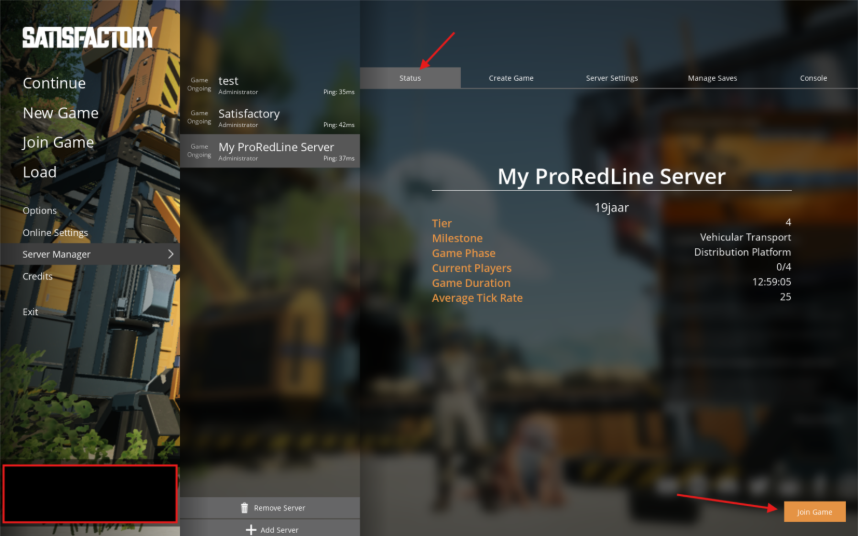
Once your new or existing map finishes installing, the loading icon will disappear, and you will regain access to your in-game settings page. Head over to the “Status” tab and click on “Join Game” to start playing!
How others join the server #
The process for other players to join your server is similar as how administrators must join. On the satisfactory home page, ask your players to go to the “Server Manager” tab. Then click “Add Server” and fill in the IP and Port of the Satisfactory server as stated in your ProRedLine dashboard under “Address”.
The player then will also be faced with a popup asking to manually accept the server’s certificate. Click on “Confirm”. Now the player will be sent to the status page of your server. On this page, the player will have to click on “Join Game” to join the server. The server will be saved in the player’s server manager. Every time they want to join, they need to go to “Server Manager” > the name of your server > Join Game.
Once other players have added your server to the Server Manager, they will be registered as “Client”. This means that the user can join but is not allowed to manage your server’s settings. If they try to access one of the settings pages within the server manager, they will be asked for the password you set up earlier. The only page a “Client” can view, is the Status tab.
Updating server #
To update your server’s software, follow these steps:
- Go to the “Settings” Tab: Open your server dashboard and navigate to the Settings tab.
- Scroll Down: Locate the option labeled Reinstall Server.
- Click on “Reinstall Server”: This will start the reinstallation process.
Important note: Reinstalling your server using this method will update the core files only. Your saved data, mods, and custom configurations will generally remain intact. However, we strongly recommend creating a backup of all essential data before proceeding, as some server types may still overwrite or remove custom content.
Clean Reinstallation #
To fully reinstall your server with a clean set of software and files:
- Stop the Server: Ensure your server is not running.
- Delete All Files: Navigate to the Files tab, select all folders and files, and click Delete.
- Reinstall the Server: Once all files are removed, follow the same steps outlined above for updating your server.
Note: This process will permanently remove all files from your server, including custom folders, mods, and configurations. This action is irreversible unless you have created a backup in advance.
Troubleshooting & Support #
If you experience issues with your server, need help with panel-related settings, or have questions about your ProRedLine service, please contact ProRedLine Support first. Support requests related to provisioning, access, panel usage, billing, or service-level concerns should always be directed to ProRedLine.
For game-specific questions, such as gameplay behavior, official game mechanics, or title-specific configuration guidance, the official Satisfactory Support is recommended.
Legal Information #
When configuring and managing your server, please make sure your usage remains compliant with all applicable rules and policies, including:
- Satisfactory Policies
- ProRedLine Terms of Service
- ProRedLine Acceptable Use Policy
These policies apply to how the service may be used, configured, and managed.
Still need help after reading this article?
