
 Doc Summary

Introduction #
In this doc you will find usefull information regarding your LanguageTool App Server at ProRedLine. After reading this doc, you’ll know how to configure your server, how to use the browser extension, and more.
About LanguageTool #
LanguageTool is an advanced proofreading software. It checks for grammar mistakes, spelling errors, punctuation issues and style improvements. LanguageTool can be used via a web editor, browser extensions, integrations (Microsoft Word, Google Docs, etc.), in the official application for macOS, iOS, and Windows and as an API. In short, LanguageTool helps you write correctly and professionally.
Benefits of a Server #
The benefits of having your own LanguageTool server includes:
- Data privacy: Texts never leave your infrastructure as all data goes through your own ProRedLine server.
- No usage limits: No quotas from the public API.
- Customization: You can adjust rules and dictionaries.
- Better performance: Dedicated resources for your needs.
Startup Variables #
Once the server has been created, you will need to configure it before it can run as expected.
On your server’s dashboard, go to the “Startup” tab. Here, you will find several settings that you can configure according to your specific needs. Below is a list of options available for your LanguageTool Server in the “Startup” tab:
- STARTUP COMMAND and DOCKER IMAGE are read-only variables and cannot be modified.
- Include traindata. Here you can set your preferred language(s) to use with traindata. Traindata provides your LanguageTool with more and better data to use with recognizing grammar mistakes, punctuation issues, etc. Traindata can use a lot of your server’s disk space.
Starting your server #
- Once you have configured all the settings, you can start the server by going to the “Console” tab and clicking “Start”.
- Wait a few moments for the server to boot.
Changing Configurations #
If you wish to change settings not listed in the Variables section, you can edit the server’s config file. However, note that any changes to the Variables options in the “Startup” tab will override the corresponding settings in the config file. We recommend only changing values in the config file that are not listed in the Startup tab.
LanguageTool Browser Extension #
Install Browser Extension #
LanguageTool has their own official browser extension. By default, their browser extension works with the official LanguageTool servers. So here we’ll cover on how to use their official browser extension in combination with your ProRedLine LanguageTool server.
- First download and install the official LanguageTool browser extension. It works with Chrome, Edge, Firefox, Safari, and Opera. Download page: https://languagetool.org/nl/services#browsers
Changing extension to ProRedLine hosted server #
- Once installed, click on the extension and click on ‘Settings’.
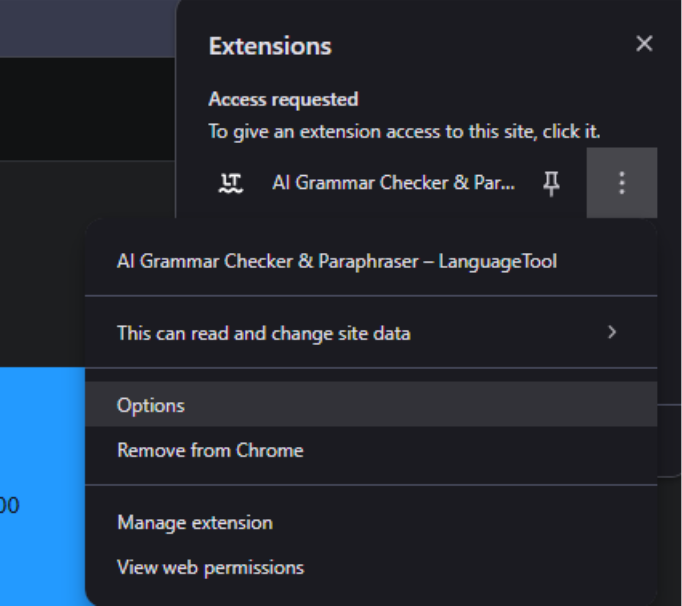
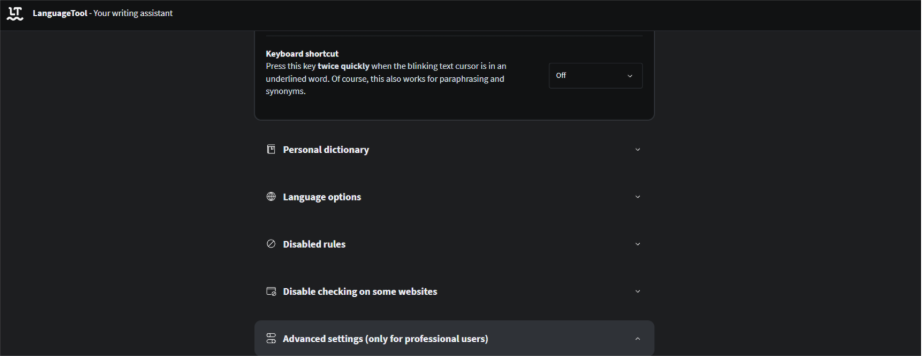
- On the settings page, scroll all the way down to ‘Advanced settings’ and click on it.
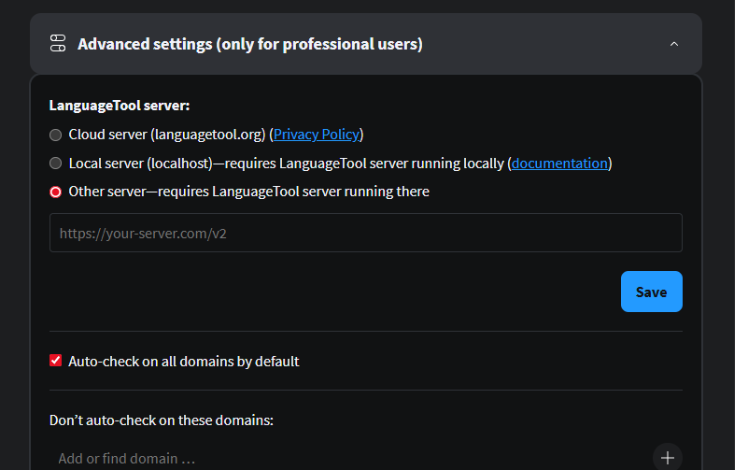
- On default, the Cloud server is checked, but you want to use your ProRedLine server. Click on ‘Other server’.
- Here we want to fill in your own URL, so first you need to get your server’s IP and PORT. This can be found in your server dashboard under ‘Address’.
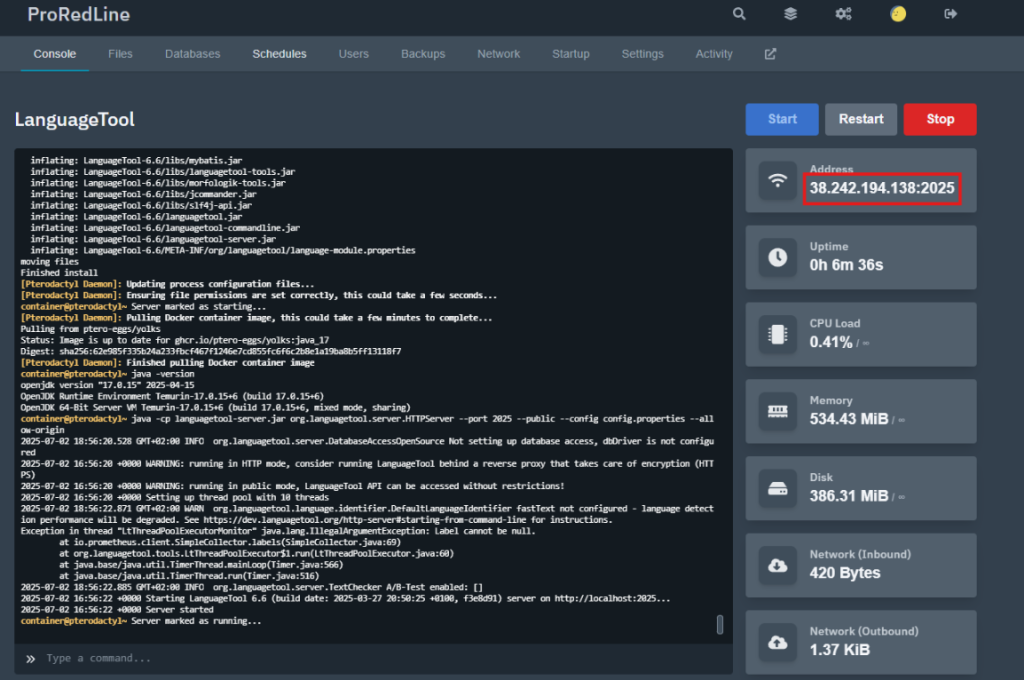
- As shown in the picture, in our case, the address of our LanguageTool server is ‘38.242.194.138:2025’. Copy the address of your server and go back to the settings page of the LanguageTool browser extension.
- LanguageTool only accepts URL’s as ‘Other server’ with ‘http://’ at the beginning and ‘/v2/’ at the end. So in our case, the correct URL to use as ‘Other server’ would be ‘http://38.242.194.138:2025/v2/‘. That URL can now be entered as value under ‘Other server’ as shown in this picture but with your own server’s address and click SAVE:
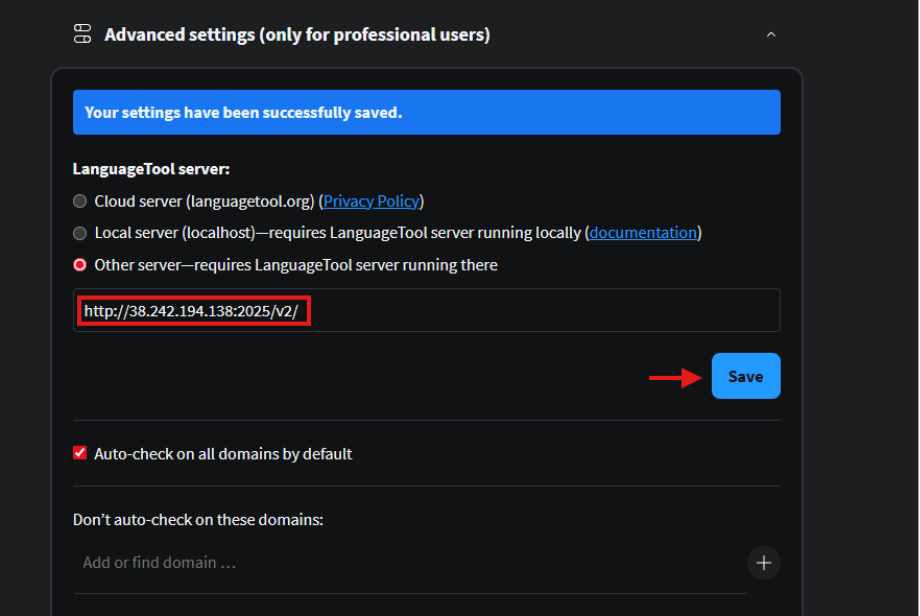
- That’s it! You have now successfully linked your browser extension with your ProRedLine LanguageTool server. The browser extension will now check all of your entered texts on all websites and will only share this with your ProRedLine server. Try it out here: https://proredline.com/testing-languagetool/
HTTPS & IP Whitelisting #
HTTPS connection #
After setup, your ProRedLine LanguageTool server uses an HTTP connection (This is the case if you use your LanguageTool server with the address on your server’s dashboard: ex. 38.242.194.138:2025). This can make your connection between your client and server vulnerable for attackers.
If you want to make sure all your texts and information, send between your client (browser extension, etc.) and your ProRedLine server is secure, you can use HTTPS. This will change the address used (currently http://IP:PORT/v2/) to a different HTTPS URL (ex. https://server2.proredline.com/mylanguagetool/v2/). This makes sure no attackers can intercept any of the information and/or texts shared between your client and your ProRedLine server.
IP Whitelisting #
Currently, everyone who has your HTTP/HTTPS link can access your ProRedLine LanguageTool server. To prevent this, we have implemented IP whitelisting. This makes sure only devices with the allowed IP addresses can access your LanguageTool server through its API. All other people/hackers will receive an error if they are trying to connect with your server.
How to request #
Now the important part. Now you must be wondering: Ok, how do I enable HTTPS and IP whitelisting? Due to technical and security limitations, ProRedLine Staff will enable one or both of these features for you manually as it’s not possible for now to do that yourself. If you would like HTTPS and/or IP whitelisting enabled, please contact us and we’ll help you free of charge. When creating a ticket to (also) enable IP whitelisting, please provide us with a list of IP’s you would like to be allowed to access your LanguageTool server. You can look up your own IP address by searching ‘my IP’ on Google and clicking on one of the given websites.
Updating server #
To update your server’s software, follow these steps:
- Go to the “Settings” Tab: Open your server dashboard and navigate to the Settings tab.
- Scroll Down: Locate the option labeled Reinstall Server.
- Click on “Reinstall Server”: This will start the reinstallation process.
Important note: Reinstalling your server using this method will update the core files only. Your saved data and mods will generally remain intact, custom configurations can sometimes be reset. However, we strongly recommend creating a backup of all essential data before proceeding, as some server types may still overwrite or remove custom content.
Clean Reinstallation #
To fully reinstall your server with a clean set of software and files:
- Stop the Server: Ensure your server is not running.
- Delete All Files: Navigate to the Files tab, select all folders and files, and click Delete.
- Reinstall the Server: Once all files are removed, follow the same steps outlined above for updating your server.
Note: This process will permanently remove all files from your server, including custom folders, mods, and configurations. This action is irreversible unless you have created a backup in advance.
Troubleshooting & Support #
If you experience issues with your server, need help with panel-related settings, or have questions about your ProRedLine service, please contact ProRedLine Support first. Support requests related to provisioning, access, panel usage, billing, or service-level concerns should always be directed to ProRedLine.
For app-specific questions, such as behavior, mechanics, or title-specific configuration guidance, the official LanguageTool Help Center is recommended.
Legal Information #
When configuring and managing your server, please make sure your usage remains compliant with all applicable rules and policies, including:
These policies apply to how the service may be used, configured, and managed.
Still need help after reading this article?
