Skip to content
ProRedLine Support
  • Documentation
ProRedLine Support
  • My Tickets
  • Toggle website search
Search this website

Getting Started

5
  • Game & App Servers
  • Web Hosting
  • Email
  • cPanel
  • WordPress

Web Hosting

4
  • What is Web Hosting?
  • Managing your Website
  • Databases for Web Hosting
  • PHP Settings in Web Hosting

Email

4
  • What is Email Hosting?
  • Email Deliverability and Authentication
  • Managing Email Features
  • Common Email Problems

cPanel

6
  • What is cPanel and how does it work
  • Why some cPanel features are disabled
  • File Management Tools
  • Backups in cPanel
  • Databases in cPanel
  • Security Features in cPanel

Domains & DNS

4
  • Domain and DNS Basics
  • Managing Domains and DNS
  • Domain Ownership and Responsibilities
  • Domain Transfers and Authorization Codes

WordPress

4
  • What is WordPress
  • Managing WordPress with WP Toolkit
  • WordPress Security Basics
  • Common WordPress Problems

Account Management

7
  • My ProRedLine
    • Managing Your Account Details
    • Managing Additional User Access
  • Access & Security
    • Password Resets & Access Issues
    • Account Security Basics
  • Suspension & Closure
    • Account Suspension Explained
    • Closing your Account and Data Requests
    • Suspension vs Closure

ProRedLine

8
  • Billing & Payments
    • Payments and Billing Basics
    • Invoices and Billing Documents
    • Failed Payments and Payment Method Issues
    • Prepaid Subscriptions Explained
    • Plan Changes and Billing Adjustments
    • Reactivation Fee Explained
  • Platform & Access
    • Our Websites and Their Purpose
  • Service & Support
    • Reporting Incidents and Service Issues

Game Servers

10
  • Ark Survival Ascended
  • Euro Truck Simulator 2
  • Insurgency
  • Minecraft Java
  • Minecraft Bedrock
  • Rust
  • Satisfactory
  • Unturned
  • Ark Survival Evolved
  • BeamMP

App Servers

4
  • Discord Bot
  • LanguageTool
  • Uptime Kuma
  • Visual Studio Code

Game Panel

4
  • Getting Started with the Game Panel
  • Using the File Manager
  • Creating Scheduled Tasks
  • Backups and Restores
View Categories
  • Docs
  • Game Panel
  • Getting Started with the Game Panel

Getting Started with the Game Panel

ProRedLine
Updated on April 1, 2026

2 min read

AI Doc Summarizer Doc Summary
AI Doc Summarizer Thinking Thinking

Introduction #

In this doc you will find all the information you need to get started with the ProRedLine Game Panel (used for game and app servers). This doc will cover basic navigation, how to use the Game Panel, and more.


Emails and Installation After Payment #

First email #

Firstly you will receive an email notifying you that the subscription payment was successful. From this moment your new (game) server will automatically start the installation process behind the screens.

New customers #

If this is your first (game) server subscription through ProRedLine, you’ll receive an email from the Game Panel informing you an account has been created for you at https://game.proredline.com. In this email you’ll find your username and a password reset link. Click on this link to set a password for your Game Panel account.
Note: This is not the same account you have at ProRedLine.com. For security reasons, the Game Panel account, is an entirely separate account.

Installation finished #

Once your (game) server has finished installing, you will receive another email informing you that your server is ready for use. You will also find a link in this email which takes you directly to your server’s dashboard after login.

Not receiving any emails? #

Please check your spam folder as some of our emails may be marked as spam by your email provider.

In rare cases, the automatic creation of your server may fail. ProRedLine gets instantly notified of any faulty automatic server creations and ProRedLine will manually retry installing your server within 24 hours.


Game Panel Dashboard/Homepage #

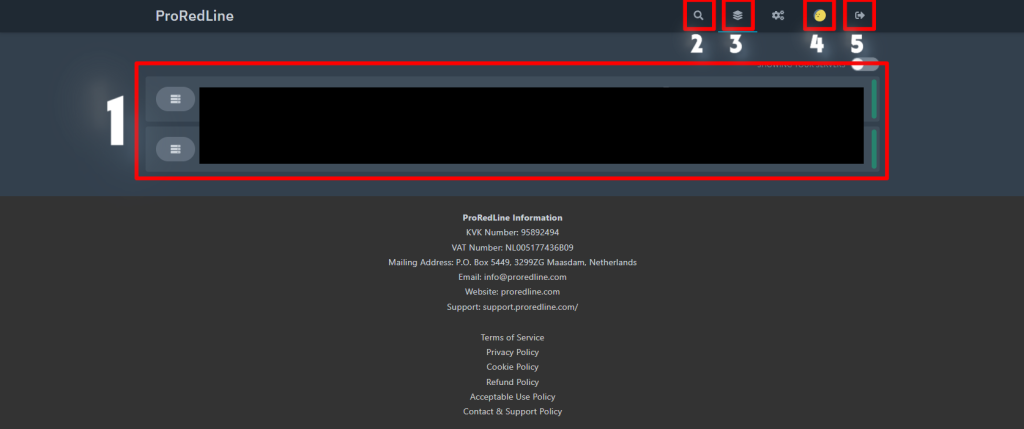
Opening the Game Panel (game.proredline.com) can be confusing at first. This is what you see on the dashboard/homepage of the Game Panel.

  1. This is the list of servers you have access to
  2. Search in the list of your servers
  3. Homepage of the Game Panel
  4. Manage your account settings
  5. Log out of your Game Panel account

Key Settings #

The key settings of each (game) server can be found in the ‘Startup’ and ‘Settings’ tab within the server’s dashboard. Click on the specific server of which you would like to change its settings, and go to the Startup or Settings tab.

What can I find in the Startup tab? #

These are all the settings (so called ‘Variables’) used for the specific server you’re running. For example selecting which in game map you would like to use, or making the server in game password protected. These variables are different for each game/app server. You can find the variables for your server, in the dedicated Game/App server docs.

What can I find in the Settings tab? #

In the settings tab are all the settings related to your server and ProRedLine. Here you will be able to change the name and description of your server’s dashboard. This will show on the Game Panel only. Here you will also find debug information for ProRedLine support when you need help with your service. Additionally, you’ll find a ‘Reinstall Server’ button on the settings tab. This is mainly used to update or install a clean installation of your (game) server. More on updates/clean installations in the dedicated Game/App server docs.


Game Panel Mobile #

The Game Panel is mobile friendly. Just visit the Game Panel (game.proredline.com) on your preferred browser and log in.

Android App #

Are you an android user? Download our app in the Google Play Store and access the Game Panel (and other ProRedLine services) easier, anywhere and anytime.
Google Play Download: https://play.google.com/store/apps/details?id=com.proredline.application


Still need help after reading this article?

Create a Ticket
Backups and RestoresUsing the File Manager
Table of Contents
  • Introduction
  • Emails and Installation After Payment
    • First email
    • New customers
    • Installation finished
    • Not receiving any emails?
  • Game Panel Dashboard/Homepage
  • Key Settings
    • What can I find in the Startup tab?
    • What can I find in the Settings tab?
  • Game Panel Mobile
    • Android App

Share This Article:

  • Facebook
  • X
  • LinkedIn
  • Pinterest

Was it helpful?

  • Happy
  • Normal
  • Sad
EU flag internet.nl result
ProRedLine

Reliable EU-based hosting for web, game and app services, built with clarity, performance and personal support in mind.

Hosting

  • Web Hosting
  • Game Servers
  • App Servers
  • Status
  • Support

Company

  • About Us
  • News
  • Information
  • Game Panel
  • Partnerships

Legal

  • Terms of Service
  • Privacy Policy
  • Acceptable Use Policy
  • Cookie Policy
  • Contact & Support Policy

Contact

info@proredline.com

P.O. Box 5449
3299 ZG, Maasdam
Netherlands

+31 085 3696 175

© 2025 - 2026 ProRedLine. All rights reserved.

KVK: 95892494 VAT: NL005177436B09
  • Documentation
  • My Tickets
  • Toggle website search
Type your search
Loading...

Insert/edit link

Enter the destination URL

Or link to existing content

    No search term specified. Showing recent items. Search or use up and down arrow keys to select an item.