Skip to content
Home Support Status Legal Account Game Panel
ProRedLine Support
  • Docs
  • My Tickets

Old Categories

122
  • Legacy ProRedLine App – Discontinuation Notice
  • What is a prepaid model?
  • Does the System Retry Failed Payments?
  • Can I Avoid the Reactivation Fee?
  • Why a Reactivation Fee Exists
  • What happens if I don’t renew on time?
  • How renewal reminders work
  • How to Update Your Payment Method
  • How to renew/cancel a subscription
  • My Server Won’t Start
  • Error Connecting to Server
  • Email Notifications Not Arriving
  • Our websites and Their Purpose
  • Performance Issues on My Server
  • How to Request a Plan Change
  • Reporting Incidents
  • WordPress Add-ons Availability
  • Payment Rules for Plan Changes
  • Changing Your Billing Cycle (30 -> 90 days, etc.)
  • Downgrade Requests (Less Resources or Lower Plan)
  • Upgrade Requests (More Resources or Features)
  • Calendars and Contacts in cPanel
  • Forwarders and Autoresponders Explained
  • Spam Filters in cPanel Explained
  • Email Accounts in cPanel Explained
  • DNS Changes and Propagation Time
  • Using a Domain with Web Hosting
  • Custom Error Pages in cPanel
  • Cron Jobs Explained
  • Logging In to Webmail for the First Time
  • Domain Parking vs Addon Domains Explained
  • Using a Domain with External Providers
  • Using a Domain with Email Hosting
  • Using Your Domain with Web Hosting
  • DNS Propagation and Email Delays
  • SPF, DKIM and DMARC Explained
  • MX Records Explained
  • Using Email Hosting with Your Domain
  • Mobile Email Setup (iOS and Android)
  • Setting Up Email in Outlook, Apple Mail and Thunderbird
  • Creating Your First Email Account
  • Apache Handlers Explained
  • Indexes and MIME Types Explained
  • Optimize Website Explained
  • Site Publisher Explained
  • Updating WordPress Core, Plugins and Themes
  • Understanding Users, Roles and Permissions in WordPress
  • First Steps After Installing WordPress
  • Installing WordPress Using WP Toolkit
  • WordPress and Hosting Responsibilities Explained
  • What WordPress Is (and Is Not) Suitable For
  • Recommended WordPress Security Plugins (Personal Advice)
  • Common Causes of a Slow WordPress Website
  • Image Optimization Basics for WordPress
  • Caching Explained for WordPress
  • PHP Versions and WordPress Compatibility
  • Staging Explained in WP Toolkit
  • Cloning a WordPress Website
  • Security policy update: change your email password
  • WordPress White Screen Explained
  • Common WordPress Security Mistakes
  • Account Management
    • Legacy ProRedLine App – Discontinuation Notice
  • Security & Trust
    • Security policy update: change your email password
  • Troubleshooting
    • My Server Won’t Start
    • Error Connecting to Server
    • Email Notifications Not Arriving
    • Performance Issues on My Server
  • Platform & Tools
    • Reporting Incidents
    • Our websites and Their Purpose
  • Payments & Billing
    • Failed payments & retry logic
      • Does the System Retry Failed Payments?
      • How to Update Your Payment Method
    • Reactivation fee explained
      • Can I Avoid the Reactivation Fee?
      • Why a Reactivation Fee Exists
    • Prepaid model explained
      • How renewal reminders work
      • What happens if I don’t renew on time?
      • How to renew/cancel a subscription
      • What is a prepaid model?
    • Switching Plans (Consumer)
      • How to Request a Plan Change
      • Upgrade Requests (More Resources or Features)
      • Downgrade Requests (Less Resources or Lower Plan)
      • Changing Your Billing Cycle (30 -> 90 days, etc.)
      • Payment Rules for Plan Changes
  • Web Hosting
    • Domains & DNS
      • Using Your Domain with Web Hosting
    • Website Management
      • Optimize Website Explained
      • Site Publisher Explained
    • Advanced
      • Apache Handlers Explained
      • Indexes and MIME Types Explained
  • Email Hosting
    • Getting Started
      • Mobile Email Setup (iOS and Android)
      • Setting Up Email in Outlook, Apple Mail and Thunderbird
      • Creating Your First Email Account
      • Logging In to Webmail for the First Time
    • DNS & Deliverability
      • DNS Propagation and Email Delays
      • SPF, DKIM and DMARC Explained
      • MX Records Explained
      • Using Email Hosting with Your Domain
  • cPanel
    • cPanel Domains & DNS
      • DNS Changes and Propagation Time
    • cPanel Email
      • Calendars and Contacts in cPanel
      • Forwarders and Autoresponders Explained
      • Spam Filters in cPanel Explained
      • Email Accounts in cPanel Explained
    • Security & Advanced
      • Custom Error Pages in cPanel
      • Cron Jobs Explained
  • Domains & DNS
    • Use Cases
      • Domain Parking vs Addon Domains Explained
      • Using a Domain with External Providers
      • Using a Domain with Email Hosting
      • Using a Domain with Web Hosting
  • WordPress
    • Overview
      • WordPress and Hosting Responsibilities Explained
      • What WordPress Is (and Is Not) Suitable For
    • Getting Started
      • Understanding Users, Roles and Permissions in WordPress
      • First Steps After Installing WordPress
      • Installing WordPress Using WP Toolkit
    • WP Toolkit
      • Staging Explained in WP Toolkit
      • Cloning a WordPress Website
      • Updating WordPress Core, Plugins and Themes
    • Performance
      • Common Causes of a Slow WordPress Website
      • Image Optimization Basics for WordPress
      • Caching Explained for WordPress
      • PHP Versions and WordPress Compatibility
    • Security
      • Common WordPress Security Mistakes
      • Recommended WordPress Security Plugins (Personal Advice)
    • Troubleshooting
      • WordPress Add-ons Availability
      • WordPress White Screen Explained

New Docs

55
  • Finished New Docs
    • Invoices and Billing Documents
    • Payments and Billing Basics
    • Common WordPress Problems
    • WordPress Security Basics
    • Managing WordPress with WP Toolkit
    • What is WordPress
    • Suspension vs Closure
    • Closing your Account and Data Requests
    • Account Suspension Explained
    • Account Security Basics
    • Password Resets & Access Issues
    • Managing Additional User Access
    • Managing Your Account Details
    • Domain Transfers and Authorization Codes
    • Domain Ownership and Responsibilities
    • Managing Domains and DNS
    • Domain and DNS Basics
    • Common Email Problems
    • Managing Email Features
    • Email Deliverability and Authentication
    • What is Email Hosting?
    • PHP Settings in Web Hosting
    • Databases for Web Hosting
    • Managing your Website
    • What is Web Hosting?
    • Security Features in cPanel
    • Databases in cPanel
    • Backups in cPanel
    • File management Tools
    • Why some cPanel features are disabled
    • What is cPanel and how does it work
    • Backups and Restores
    • Creating Scheduled Tasks
    • Using the File Manager
    • Getting Started with the Game Panel
    • Visual Studio Code
    • Uptime Kuma
    • LanguageTool
    • Discord Bot
    • BeamMP
    • Ark Survival Evolved
    • Unturned
    • Satisfactory
    • Rust
    • Minecraft Bedrock
    • Minecraft Java
    • Insurgency
    • Euro Truck Simulator 2
    • Ark Survival Ascended
  • Unfinished New Docs
    • WordPress
    • cPanel
    • Email
    • Web Hosting
    • App Servers
    • Game Servers
View Categories
  • Docs
  • New Docs
  • Finished New Docs
  • Creating Scheduled Tasks

Creating Scheduled Tasks

ProRedLine
Updated on March 29, 2026

2 min read

AI Doc Summarizer Doc Summary
AI Doc Summarizer Thinking Thinking

Introduction #

Scheduling tasks is an easy tool to use for automated actions on your server. From custom commands to restarts, this function will do it all for you. This is done by creating a schedule (in which you can set the ‘time’ it triggers its tasks), and in each schedule, you can create (multiple) actions which will be executed (these are called tasks).


Creating a schedule #

These steps can be repeated to add multiple schedules on a server.

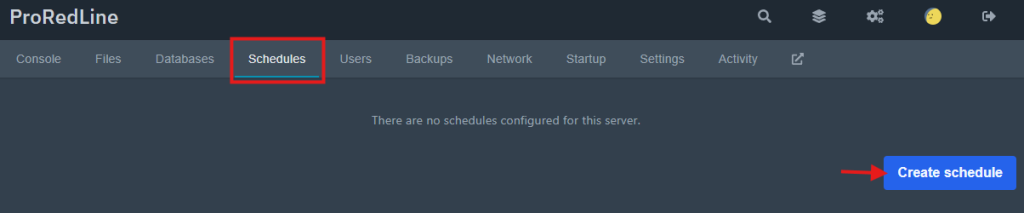
  1. Open your server’s dashboard and go to the ‘Schedules’ tab
  2. Click on the ‘Create schedule’ button
  1. A popup will appear with the schedule’s settings. Give this schedule a name.
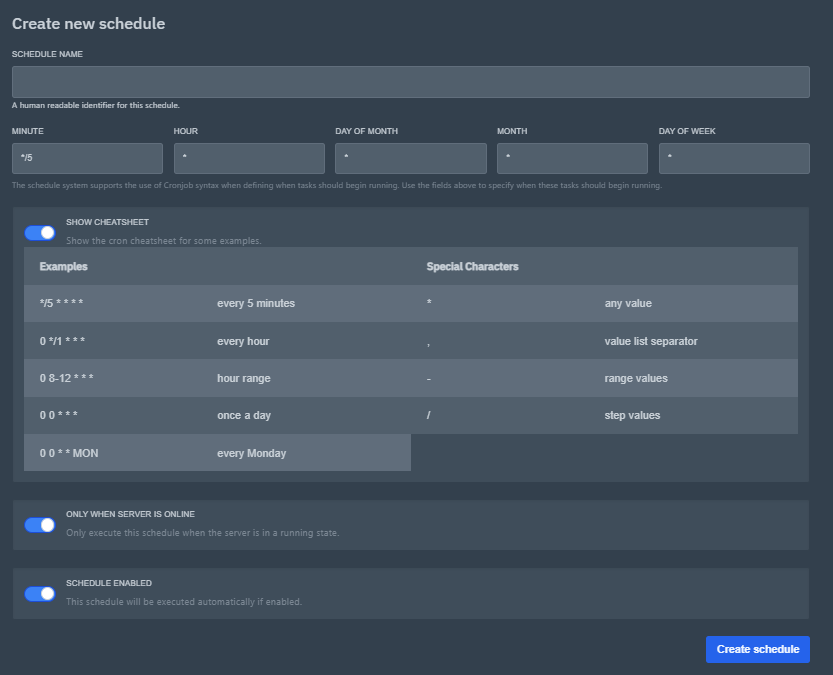
  1. In this same popup, fill in when you want the schedule to run. Use the time sheet to understand the time options, or use this website to understand how it works and what each value does: https://crontab.cronhub.io/
  2. Optionally (de)select the option ‘Only When Server Is Online’, which only executes the schedule when the server is running, and the option ‘Schedule Enabled’, which enables the automatic triggering of the schedule
  3. Once finished with all of these settings, click ‘Create schedule’
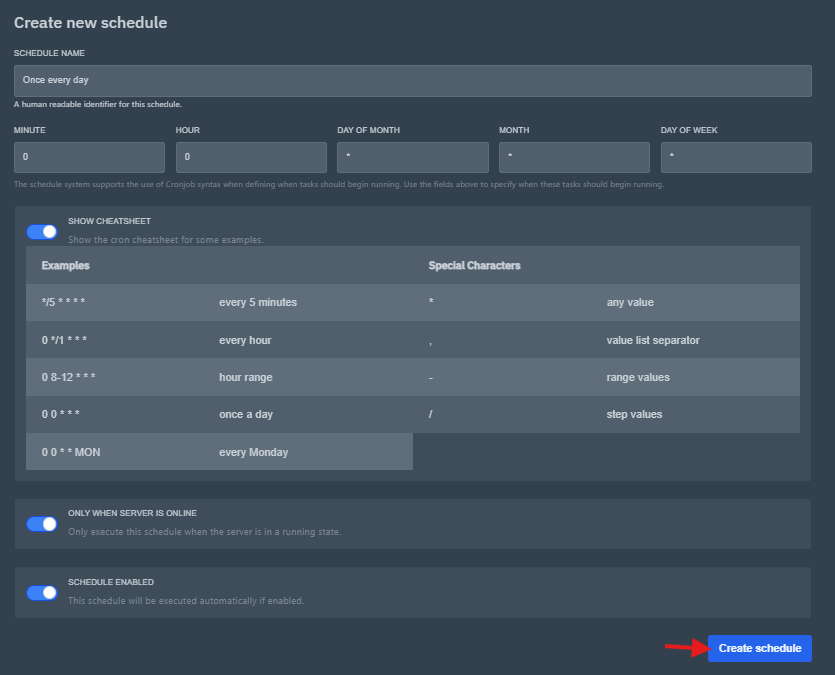
  1. Your schedule has now been created!

Creating the tasks in a schedule #

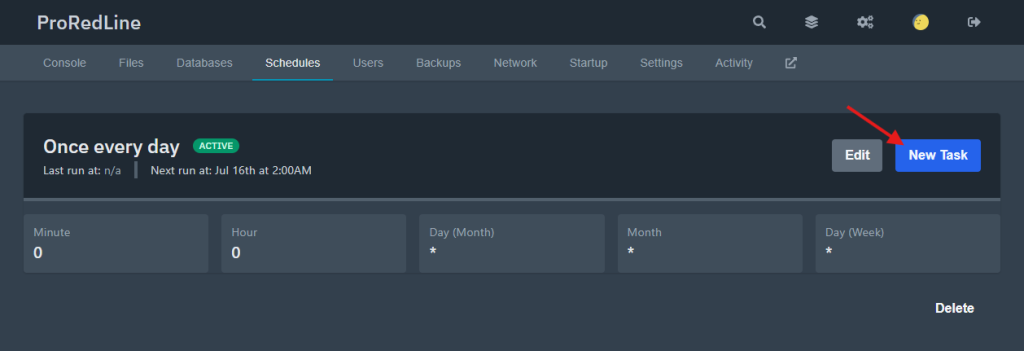
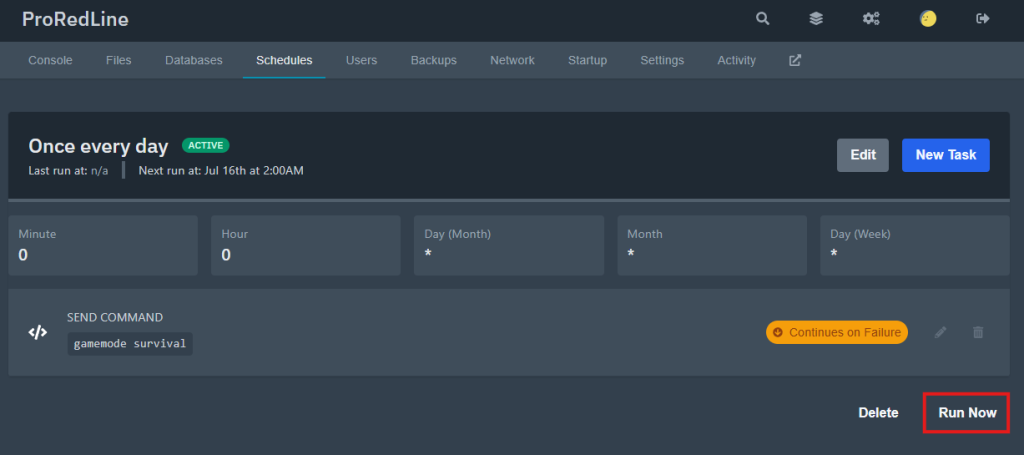
  1. Click on the newly (or already existing) schedule under the ‘Schedules’ tab of your server’s dashboard.
  2. Click on the ‘New Task’ button.
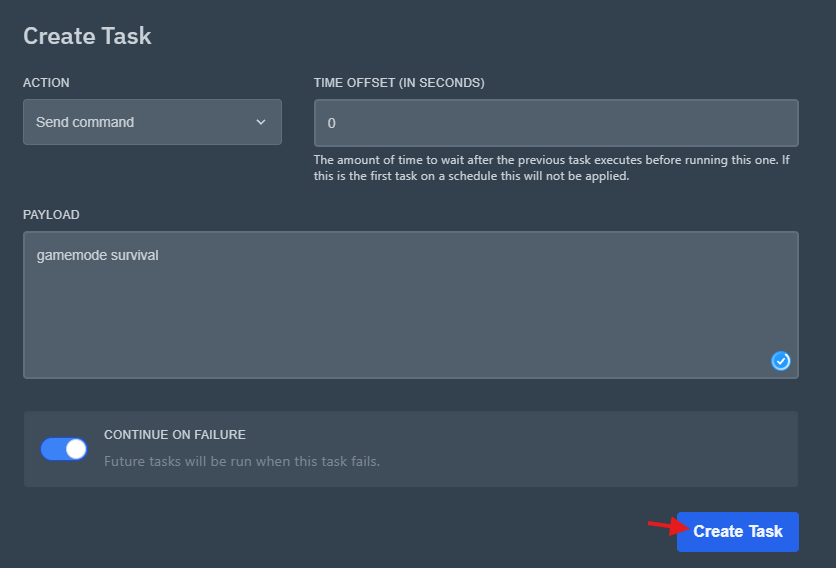
  1. A popup will appear with a couple of options and fields. First an ‘action’ needs to be selected. This is what each options mean:
    • Send command: Sends a command to your (game) server’s console each time the schedule runs
    • Send power action: Starts, Stops or Restarts your (game) server each time the schedule runs
    • Create backup: Creates a backup each time the schedule runs. Deletes the oldest backup if you have reached the backups limit for your server.
  2. All of these actions have different options, here’s a quick explanation of each field.
    • Send command:
      • Time offset (in seconds): This is only handy if you run multiple tasks within the same schedule. This waits executing the action # seconds after the previous task started executing. Leaving this at 0 seconds means it will run at the same time as the previous task.
      • Payload: This is the command which will be sent to the console. Enter the command exactly into this field how you would do it in the console.
      • Continue on failure: If the task has failed for any reason, still execute the tasks which may come after this task.
    • Send power action:
      • Time offset (in seconds): This is only handy if you run multiple tasks within the same schedule. This waits executing the action # seconds after the previous task started executing. Leaving this at 0 seconds means it will run at the same time as the previous task.
      • Payload: Select the power option you wish to be executed. There’s also a fourth option called ‘Terminate the server’. This option is like stopping your server, but not gracefully. This can lead to data corruption, so we do not recommend using this option in a task.
      • Continue on failure: If the task has failed for any reason, still execute the tasks which may come after this task.
    • Create backup:
      • Time offset (in seconds): This is only handy if you run multiple tasks within the same schedule. This waits executing the action # seconds after the previous task started executing. Leaving this at 0 seconds means it will run at the same time as the previous task.
      • Ignored Files: If you wish some files to be kept out of the backup, enter them in this field.
      • Continue on failure: If the task has failed for any reason, still execute the tasks which may come after this task.
  3. Now click ‘Create Task’
  1. Your task has now been created! Repeat these steps to create additional tasks within the same schedule. Optionally click ‘Run Now’ if you wish to trigger the schedule now instead of waiting for the automatic schedule to run.
Still need help after reading this article?

Create a Ticket
Backups and RestoresUsing the File Manager
Table of Contents
  • Introduction
  • Creating a schedule
  • Creating the tasks in a schedule

Share This Article:

  • Facebook
  • X
  • LinkedIn
  • Pinterest

Was it helpful?

  • Happy
  • Normal
  • Sad
ProRedLine

Reliable EU-based hosting for web, game and app services, built with clarity, performance and personal support in mind.

Hosting

  • Web Hosting
  • Game Servers
  • App Servers
  • Status
  • Support

Company

  • About Us
  • News
  • Information
  • Game Panel

Legal

  • Terms of Service
  • Privacy Policy
  • Acceptable Use Policy
  • Cookie Policy
  • Contact & Support Policy

Contact

info@proredline.com

P.O. Box 5449
3299 ZG, Maasdam
Netherlands

Stay updated

Receive occasional ProRedLine updates by email.

Subscribe to newsletter »

© 2025 - 2026 ProRedLine. All rights reserved.

KVK: 95892494 VAT: NL005177436B09
  • Docs
  • My Tickets
Type your search
Loading...

Insert/edit link

Enter the destination URL

Or link to existing content

    No search term specified. Showing recent items. Search or use up and down arrow keys to select an item.