

 Doc Summary

Introduction #
In this doc you will find usefull information regarding your Ark Survival Ascended Game Server at ProRedLine. After reading this doc, you’ll know how to add mods, how to customize your server, and more.
Startup Variables #
Once the server has been created, you will need to configure it before it can run as expected.
On your server’s dashboard, go to the “Startup” tab. Here, you will find several settings that you can configure according to your specific needs. Below is a list of options available for your ARK: Survival Ascended server in the “Startup” tab:
- STARTUP COMMAND and DOCKER IMAGE are read-only variables and cannot be modified.
- SERVER MAP. The default map is “TheIsland_WP”. You can change this by selecting from the following options: “TheIsland_WP”, “TheCenter_WP”, “ScorchedEarth_WP”, “Aberration_WP”, “Extinction_WP”, or “BobsMissions_WP” (Requires Club ARK).
- SERVER NAME. You can modify this value to set your server’s name, which will appear in the Ark Survival Ascended server list.
- AUTO-UPDATE SERVER. By default, this option is enabled. We recommend keeping it enabled, but you can disable it if you prefer to prevent automatic updates for your Ark server.
- BATTLE EYE. The default setting is enabled. We recommend keeping BattleEye enabled, but you can disable it if you prefer not to use the anti-cheat system on your server.
- (READ-ONLY) ADDITIONAL ARGUMENTS (PARAMS). This field allows you to specify extra startup options. It is read-only and cannot be edited, as it could break your server. If you need changes, please create a ticket at ProRedLine Support. Any modifications to this field are free of charge.
- MAX PLAYERS. This specifies the maximum number of players allowed on your server. The default value is set according to the allocated resources for your server. You may increase it, but we recommend against it, as exceeding the allocated resources could cause server issues.
- SERVER ADMIN PASSWORD. We strongly recommend changing this password. It is required to access RCON and enable in-game cheats.
- (READ ONLY) QUERY PORT. This is the port used for Steam and Ark’s in-game server browser. This value is fixed and cannot be edited.
- (READ ONLY) ADDITIONAL ARGUMENTS (FLAGS). This field is for specifying extra startup options. It is read-only and cannot be edited, as changes could break your server. For modifications, please submit a ticket at ProRedLine Support. Any changes to this field are free of charge.
- SERVER PVE. By default, this option is enabled (PvE). If you disable it, your server will switch to PvP.
- SERVER PASSWORD. This field is empty by default, meaning no password is required to join the server. If you want your server to be password-protected, enter a desired password, and your server will require it after a restart.
- (READ ONLY) RCON PORT. This port is used for RCON connections, but RCON functionality is still under development.
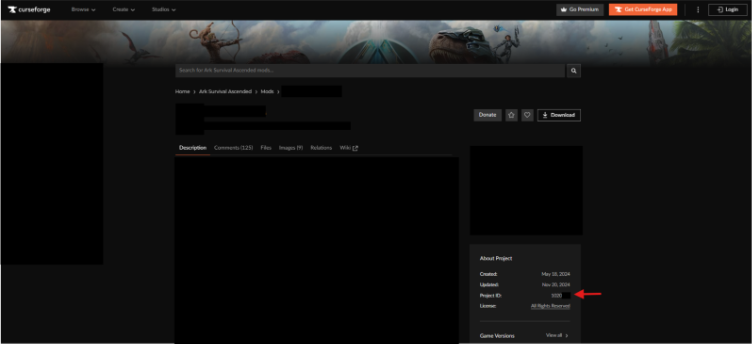
- MOD IDS. Leave this field blank to disable mods. If you want mods, visit CurseForge, find the mod you want, and copy the Project ID from the mod’s homepage. Enter the Project ID(s) in this field, separated by commas (e.g., 1234,1235,1236) if you want multiple mods.
Starting your server #
- Once you have configured all the settings, you can start the server by going to the “Console” tab and clicking “Start”.
- Wait a few moments for the server to boot.
Changing Configurations #
If you wish to change settings not listed in the Variables section, you can edit the server’s config file. However, note that any changes to the Variables options in the “Startup” tab will override the corresponding settings in the config file. We recommend only changing values in the config file that are not listed in the Startup tab.
Updating server #
To update your server’s software, follow these steps:
- Go to the “Settings” Tab: Open your server dashboard and navigate to the Settings tab.
- Scroll Down: Locate the option labeled Reinstall Server.
- Click on “Reinstall Server”: This will start the reinstallation process.
Important note: Reinstalling your server using this method will update the core files only. Your saved data, mods, and custom configurations will generally remain intact. However, we strongly recommend creating a backup of all essential data before proceeding, as some server types may still overwrite or remove custom content.
Clean Reinstallation #
To fully reinstall your server with a clean set of software and files:
- Stop the Server: Ensure your server is not running.
- Delete All Files: Navigate to the Files tab, select all folders and files, and click Delete.
- Reinstall the Server: Once all files are removed, follow the same steps outlined above for updating your server.
Note: This process will permanently remove all files from your server, including custom folders, mods, and configurations. This action is irreversible unless you have created a backup in advance.
RCON #
What is RCON? #
RCON (Remote Console) allows you to manage and execute commands on your Ark Survival Ascended server externally, like a RCON client. There are a lot of free RCON clients available to download and use for your Ark server.
How to enable this feature #
In your ProRedLine hosted Ark Survival Ascended server, RCON is not enabled by default. Would you like to use RCON? Please contact us so we can assign another port to your game server meant for RCON. Of course this comes without any extra charges. Due to technical en security reasons, we have to manually assign a PORT to your server (under the network tab in the customer dashboard) and set RCON to use that secondary PORT.
Troubleshooting & Support #
If you have any questions or concerns regarding your server at ProRedLine, you can reach us at ProRedLine Support. For any questions related to the game, we recommend contacting Survive The Ark at Survive The Ark Support.
Legal Information #
Please ensure that you follow Ark Survival Ascended’s Code of Conduct and adhere to ProRedLine’s Terms of Service and Acceptable Use Policy when making changes to your server settings and managing your server.
Still need help after reading this article?
