

 Doc Summary

Introduction #
In this doc we’ll explain how to change your password for your ProRedLine accounts. We’ve also included common access issues in the case you are locked out of your ProRedLine account(s).
How to reset your password #
My ProRedLine #
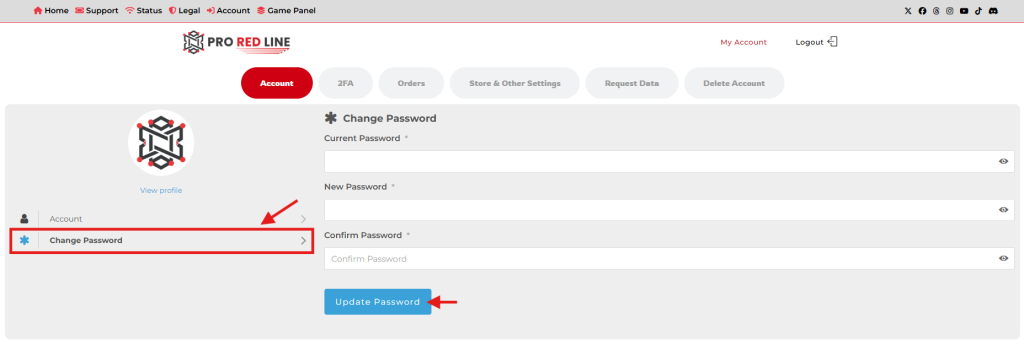
Changing your My ProRedLine account password is quite easy. Follow these steps:
- Go to https://my.proredline.com.
- On the My Account page, click on the Change Password button.
- Enter your current password in the first field, and enter the new password in the 2nd and 3rd fields.
- Click on ‘Update Password’.
- You will receive an email confirming this change.
Game Panel #
Follow these steps to change your Game Panel password:
- Go to https://game.proredline.com.
- Login with your account for the Game Panel.
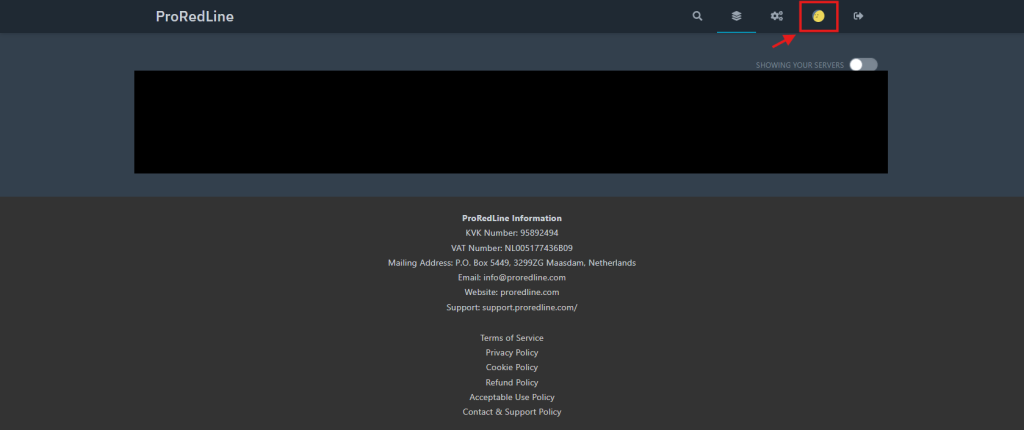
Note: when you made your first payment for your first subscription, you received your username and a password reset link in your inbox. - When logged in, go to your account settings as shown in the image below.
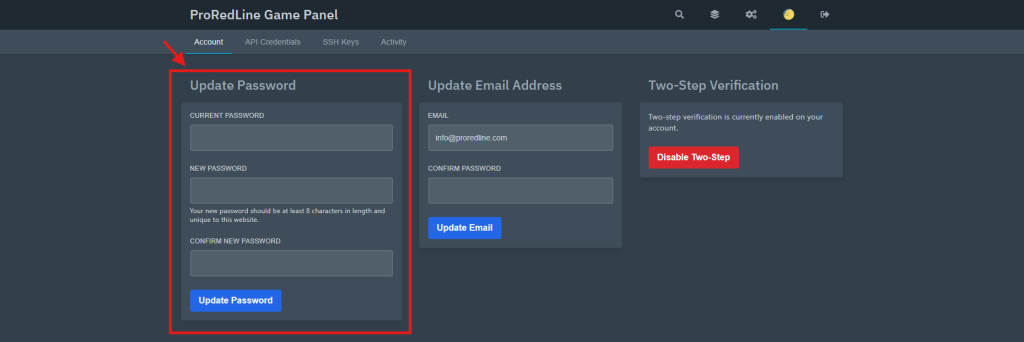
- On this page you’ll find a box with the title ‘Update Password’. Enter your old password in the first field, and your new password in the 2nd and 3rd fields.
- Click on ‘Update Password’.
- Your password for your Game Panel account has been updated.
cPanel #
Follow these steps to change your cPanel password. Note that this is for the main administrator account, and not for subaccounts.
- Go to https://cpanel.your.domain.
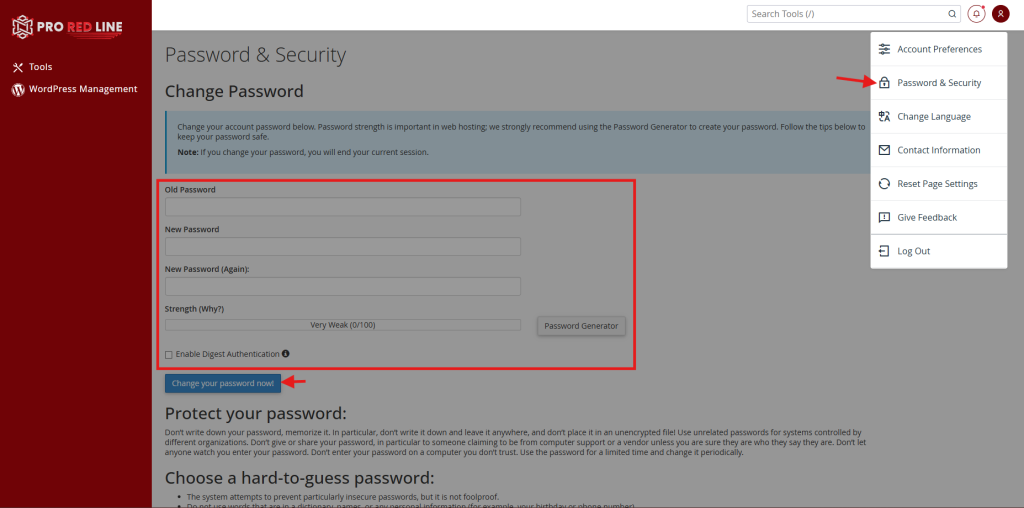
- On the cPanel home page, click on the account button on the top right of the screen.
- Go to Password & Security.
- Enter your old password in the first field, and your new password in the 2nd and 3rd fields.
Optionally use the ‘Password Generator’ button to generate a secure password. Make sure to save this password before continuing. - Unless you’re using a Windows Vista, Windows 7 or Windows 8 device, leave the ‘Enable Digest Authentication’ unchecked.
It is not recommended to enable digest authentication as it uses a clear txt/unencrypted connection with Web Disk. - Click ‘Change your password now!’.
- Your password for your cPanel account has been updated. You are logged out immediatly and you may receive an email confirming this change.
Forgot Password & Cannot Log In #
When you’ve forgot your old password, logging in and changing your password cannot be done. You should do the following for the account of which you forgot the password.
My ProRedLine #
It’s quite easy to reset your password when you’ve forgot your current credentials. Follow these steps to reset your password (without logging in):
- Go to https://my.proredline.com.
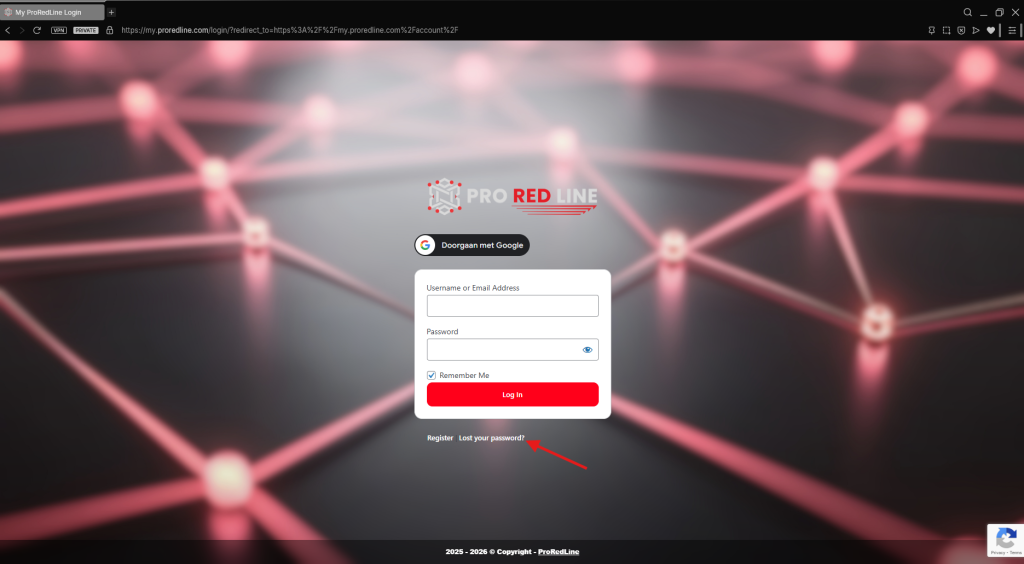
- On the login page, click on ‘Lost your password?‘.
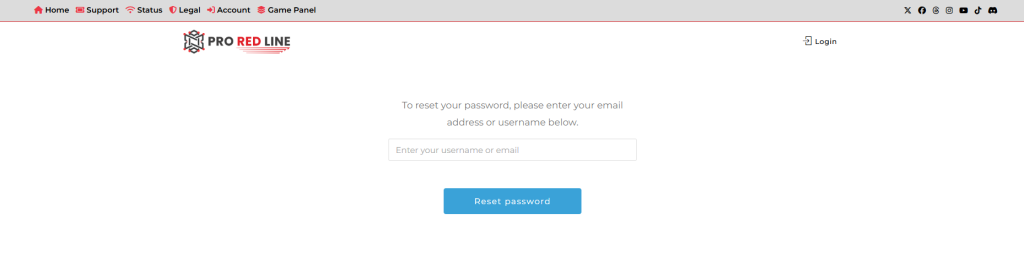
- On this page, enter your username or email for which you would like to reset the My ProRedLine password.
- Click on ‘Reset password’.
- You will receive an email with an password reset link. Open this link and enter a new password.
- Once saved, your password has been reset.
Game Panel #
Resetting your password on the Game Panel is also quite easy (without logging in). Simply follow these steps:
- Go to https://game.proredline.com.
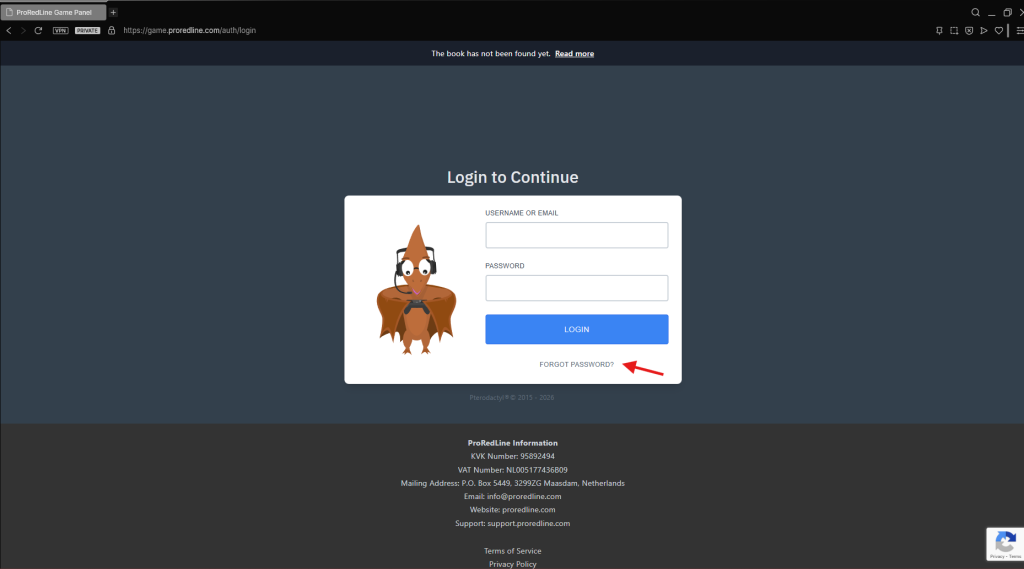
- On the login page, click on ‘FORGOT PASSWORD?‘.
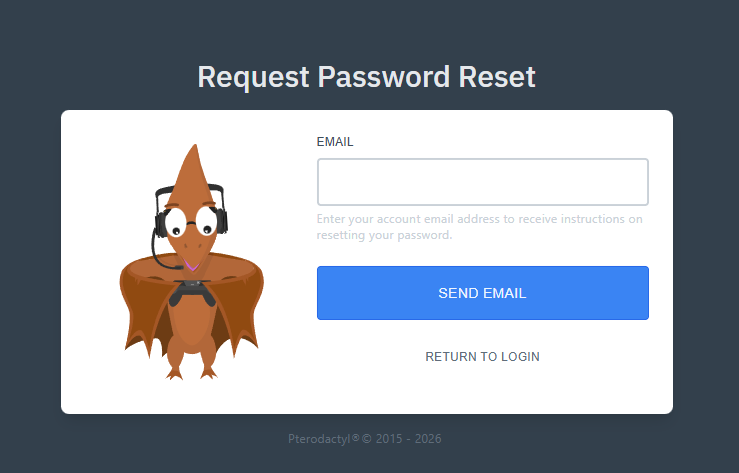
- Enter the email for which you would like to reset the Game Panel password.
- Click on ‘SEND EMAIL‘.
- You will receive an email with an password reset link. Open this link and enter a new password.
- Once saved, your password has been reset for the Game Panel.
cPanel #
These are the steps to take when you’ve forgot your cPanel or cPanel subaccount password:
- Go to https://cpanel.your.domain
- On the login screen, click on ‘Reset Password‘.
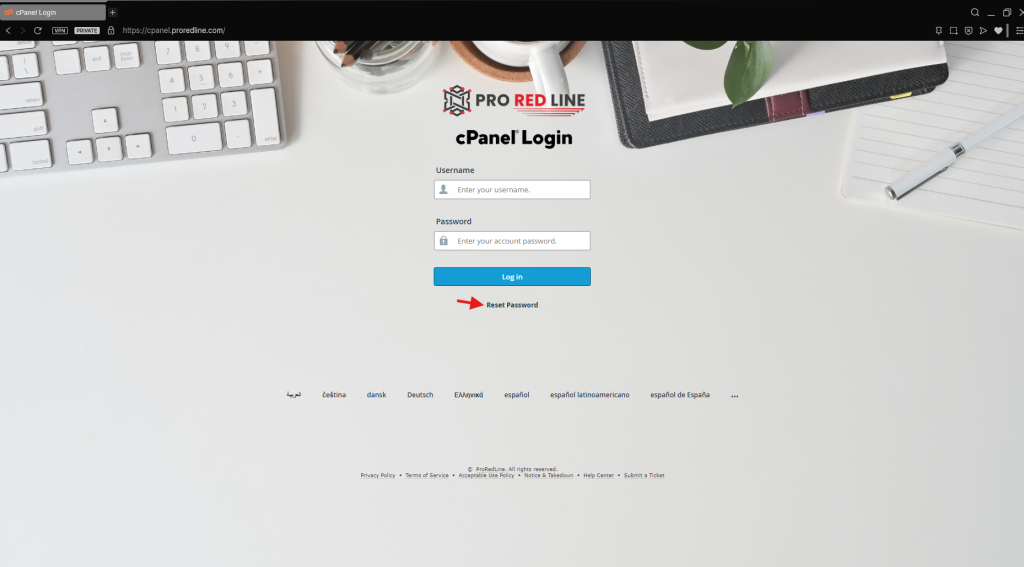
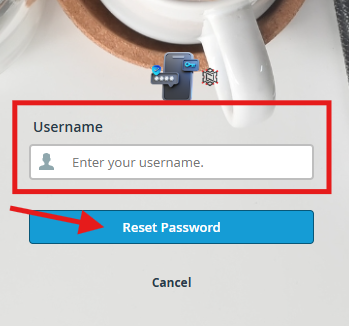
- Enter the username of the account of which you wish to change the password.
- Click ‘Reset Password’.
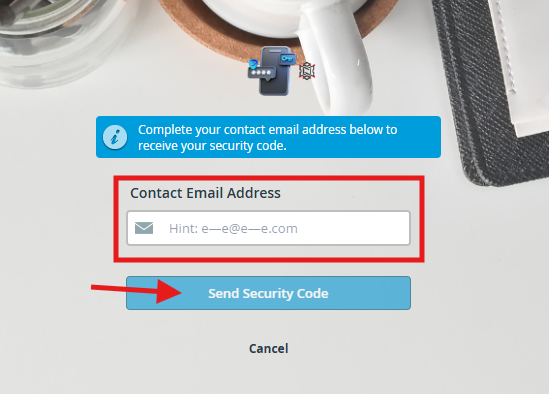
- To confirm it’s actually you, enter the contact email address linked to your cPanel account.
- and click ‘Send Security Code’
- Enter the security code you’ve received in your contact email address inbox.
- Enter the new password for your cPanel account.
- Once saved, your password has been reset for cPanel. You will receive another email confirming this change.
Can’t log in? #
There can be a good number of reasons why you can’t log in. These are the most common:
- Too many login attempts (Blocked IP by ProRedLine Security)
This is usually the case when you’ve tried logging in with wrong or unknown credentials too many times on one of our services. These blocks last for 1 hour. After 1 hour you can try again. If failed attempts happen too often within a short period of time, the block may last longer. - Malicious/Suspicious activity coming from your IP (Blocked IP by ProRedLine Security)
This is the case of someone from your IP address has made suspicious or malicious requests to ProRedLine servers. For example your email application trying over and over to connect with incorrect login details. The duration of these blocks vary depending on the kind of requests made. Some blocks are permanent. - Account suspended (Blocked by ProRedLine Support)
Suspended accounts cannot be logged into. You will receive more information in your private email inbox about account suspensions if this is the case (ex. for policy violations). - Account suspended due to payment failure (Blocked by ProRedLine Billing)
If your subscription for Game/App/Web Hosting has expired, your account will be suspended during the 7-day grace period, and completely removed after the grace period. You can recover the account by renewing within the grace period.
When you are having trouble loging in, feel free to contact us if you cannot resolve the issue yourself.
Still need help after reading this article?
