

 Doc Summary

Introduction #
In this doc you’ll learn about account security basics on your ProRedLine accounts. We’ll also explain more on account recovery options, phishing, and official ProRedLine contact information.
Two-factor authentication #
Two-factor authentication (2FA) is an extra layer of account security that requires a second verification step in addition to your password when signing in. This usually involves a temporary code generated by an authenticator app on your phone. Even if someone gains access to your password, 2FA helps prevent unauthorized access because the second code is still required. Enabling 2FA is strongly recommended for all important accounts, especially services related to hosting and account management.
My ProRedLine #
On My ProRedLine, we use the security software called WordFence. That’s the software which also handles 2FA locally. Enabling and managing 2FA on My ProRedLine can be done by following these steps:
- Go to https://my.proredline.com.
- Login with your My ProRedLine account.
- On the My Account page, open the ‘2FA’ tab.
- On this page you can activate, deactivate 2FA and manage backup codes (in case you lose access to your authenticator app). Before activating 2FA, choose which authenticator app you would like to use.
Tip: here’s a list of fully supported 2FA apps: https://www.wordfence.com/help/?query=module-login-security-2fa - On the 2FA page on My ProRedLine, you will see a QR code. Scan this code with your authenticator app.
- After scanning the QR code and saving it in your authenticator app, a code will show in your authenticator app. Enter this code below the QR code on the 2FA tab on My ProRedLine.
- Click save and download the backup codes. Keep these backup codes somewhere safe in case you ever lose access to your authenticator app.
- 2FA is now enabled. When logging into My ProRedLine, you will be asked for the code located within the authenticator app.
Tip: when logging in, you can click ‘Remember me’ on the login page, and ‘Remember this device for 30 days’ on the 2FA login page. Only check these options if you’re the only person using the device.
Game Panel #
On the Game Panel, we use the software Pterodactyl. This software also handles 2FA locally. Enabling and managing 2FA on the Game Panel can be done by following these steps:
- Go to https://game.proredline.com.
- Login with your Game Panel account.
- Go to the account page as shown in the image below.

- On this page you can activate and deactivate 2FA in the 3rd box on the right. Before activating 2FA, choose which authenticator app you would like to use.
- Within this box, you will see a QR code. Scan this code with your authenticator app.
- After scanning the QR code and saving it in your authenticator app, a code will show in your authenticator app. Enter this code below the QR code on the Game Panel.
- 2FA is now enabled. When logging into the Game Panel, you will be asked for the code located within the authenticator app.
cPanel #
For all web hosting related services at ProRedLine, we use cPanel. cPanel handles 2FA locally. Enabling and managing 2FA on cPanel for the administrator account, can be done by following these steps:
- Go to https://cpanel.your.domain.
- Login with your cPanel account.
- Scroll down to the category ‘Security’ and click on ‘Two-Factor Authentication’.
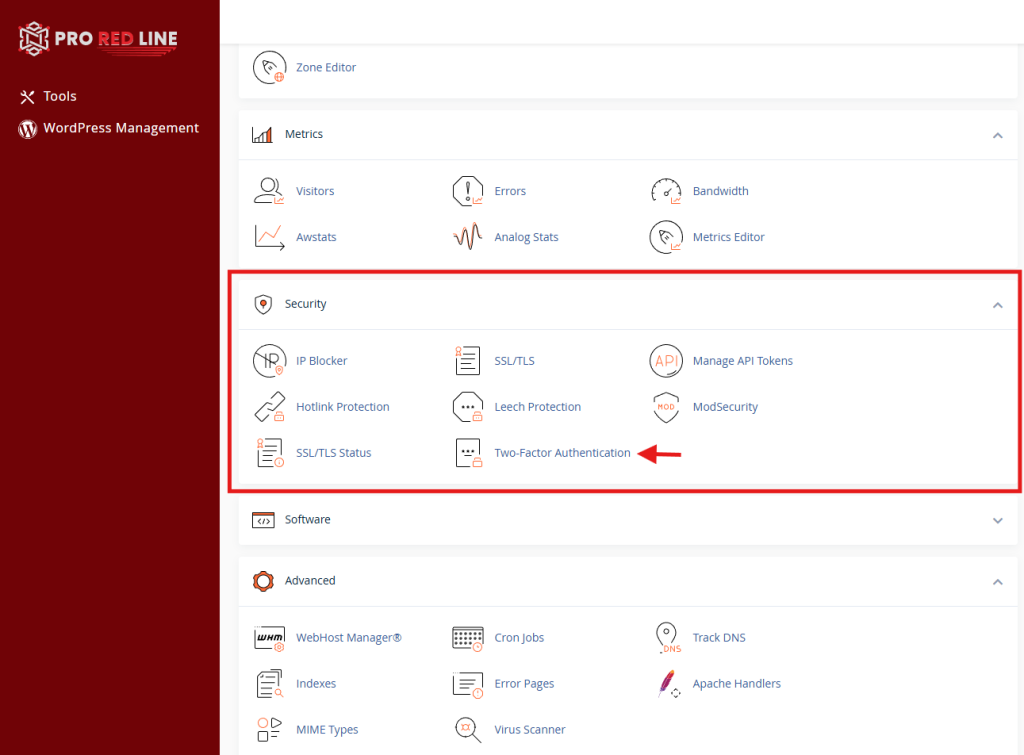
- On this page you can activate, deactivate 2FA and manage backup codes (in case you lose access to your authenticator app). Before activating 2FA, choose which authenticator app you would like to use.
- On the Two-Factor Authentication page on cPanel, you will see a QR code. Scan this code with your authenticator app.
- After scanning the QR code and saving it in your authenticator app, a code will show in your authenticator app. Enter this code below the QR code on the Two-Factor Authentication page on cPanel.
- Click save and download the backup codes. Keep these backup codes somewhere safe in case you ever lose access to your authenticator app.
- 2FA is now enabled. When logging into cPanel, you will be asked for the code located within the authenticator app.
Webmail #
It is also possible to enable 2FA for webmail accounts within cPanel. Roundcube is the software we use for webmail. This software also handles 2FA locally. Enabling and managing 2FA on webmail, can be done by following these steps:
- Go to https://webmail.your.domain.
- Login with the email account of which to enable 2FA.
- On the webmail home page, click on the account button, and go to ‘Two-Factor Authentication’ as shown in the image below.
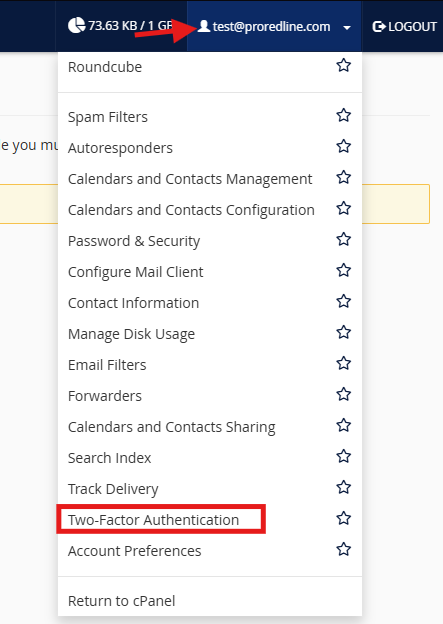
- On this page you can activate, deactivate 2FA and manage backup codes (in case you lose access to your authenticator app). Before activating 2FA, choose which authenticator app you would like to use.
- On the Two-Factor Authentication page on webmail, you will see a QR code after clicking on the ‘Set Up Two-Factor Authentication’ button. Scan this code with your authenticator app.
- After scanning the QR code and saving it in your authenticator app, a code will show in your authenticator app. Enter this code below the QR code on the Two-Factor Authentication page on webmail.
- Click save and download the backup codes. Keep these backup codes somewhere safe in case you ever lose access to your authenticator app.
- 2FA is now enabled. When logging into webmail, you will be asked for the code located within the authenticator app.
Note: 2FA only applies to webmail, not to the inbox itself. For example an email account with 2FA enabled, can still be added to an external email application without requiring 2FA.
Forgotten Email #
On My ProRedLine, the Game Panel, and cPanel, you can use your username to login. Once logged in, you can find the email address linked to that account in the account settings. Optionally you can also change your email on each account. In the case you also forgot your username, please contact ProRedLine support. We may be able to help you after we’ve been able to verify your identity.
Lost Access to 2FA #
In the case you’ve lost access to your 2FA app, you can do the following:
- Use 1 of the backup codes provided when enabling 2FA on that specific account. Simply use one of these codes as you normally would with the 2FA codes when logging in. Keep in mind, the used backup code becomes invalid after using it to login. We recommend after logging in, to disable or reset 2FA immediatly.
- If you’ve also lost access to the backup codes, ProRedLine support may be able to help you after verifying you’re the owner of the account.
Official ProRedLine Contact Information #
To check if emails, calls, texts or domains are legitimate and from ProRedLine, check if the email, number or domain is in this list. This can help prevent phishing attempts or other malicious content.
ProRedLine email addresses #
ProRedLine emails reguarly sends email regarding orders, accounts, and more. Before clicking on any links we recommend checking the sender first. We always use one of the following email addresses and why we use them:
- info@proredline.com
This is the email address ProRedLine mainly uses for support and information emails. Emails send to this address will create tickets in our support system. - server@proredline.com
This is the email address ProRedLine uses for server related notices. Web hosting customers may receive emails from this address. - billing@proredline.com
This is the email address ProRedLine uses for billing related emails. - dmarc@proredline.com
This is the email address ProRedLine uses for DMARC related emails. Web hosting customers may receive emails from this address. - no-reply@proredline.com
This is the email address ProRedLine uses for Game Panel and My ProRedLine related emails. This address is primarily used for account and order emails. This address does not accept replies. - abuse@proredline.com
This is the email address ProRedLine uses for Domain & DNS related emails. Customers may receive emails from this address regarding (policy) violations. Users may also contact this email address to report abuse. Emails send to this address will create tickets in our support system. - news@proredline.com
This is the email address ProRedLine uses for newsletter related emails. Only subscribed users may receive emails from this address.
We’ve published this list to prevent phising attempts, however, when contacting us through email, do so through info@proredline.com or our ticket system.
ProRedLine Phone Numbers #
ProRedLine is reachable through phone, although we are not able to always answer the phone. We never call you to request personal information. These are the phone numbers we use:
- (NL) +31 (085) 369 6175
This is our primarily used phone number for calls, texts and WhatsApp
ProRedLine Domains #
ProRedLine owns a couple of domains. We listed our domains below, however we always use proredline.com. Always check if links start with one of these domains before opening or clicking on any links. These are our domains:
- ProRedLine.com
This is the domain we use primarily. All our links and emails use this domain. - ProRedLine.nl
This is a domain which forwards to proredline.com. - ProRedLine.eu
This is a domain which forwards to proredline.com. - ProRedLine.net
This is a domain which forwards to proredline.com. - ProRedLine.online
This is a domain which forwards to proredline.com. - ProRedLine.dev
This is ProRedLine’s development domain. Users will never see or use this domain.
Reporting Impersonators #
Seen or contacted by someone not in the lists above? You can report them by submitting a ticket at support.proredline.com under category ‘Abuse’, or by sending an email to info@proredline.com.
How to Recognize Phishing Attempts #
Phishers are cybercriminals who impersonate trusted entities, such as banks, service providers or other known brands to trick individuals into revealing sensitive information like passwords, credit card numbers or login credentials. They typically use fake emails, websites, or messages that appear legitimate, aiming to steal data for financial gain or identity theft.
How do I recognize phishing? #
Now that you understand what phishing is, it’s also important to know when you received something from a phisher or actually from ProRedLine. We recommend reading the contact information above to know how we communicate, what emails we use, our websites links and what our phone numbers are.
ProRedLine will never: #
- Ask you for your password via email, chat, phone, or social media.
- Send links asking you to verify or update account details outside our official domains.
- Request payment or billing info via unsolicited messages.
- Ask you to install third-party software for “support” or “security checks.”
- Force you to provide sensitive data without initiating contact through a verified channel.
You may voluntarily provide information (like login details) via a secure support ticket at support.proredline.com, but only if you open the ticket yourself and understand the context.
Still need help after reading this article?
