

 Doc Summary

What is RCON? #
RCON (Remote Console) allows you to manage and execute commands on your Ark Survival Evolved server externally, like a RCON client. There are a lot of free RCON clients available to download and use for your Ark server. Your server’s control panel has a limited RCON client build in through the console, but an external RCON client is recommended for more features and practicality.
How to enable this feature #
ProRedLine-hosted Ark Survival Evolved servers have RCON enabled by default. You may notice this when starting the game server. The console will show ‘waiting for connection… (connection can take up to 15 minutes)’ until the console has successfully connected. Once connected, your server has successfully started and players can join. Like the console says, it can take up to 15 minutes before connection has been established.
Using an RCON client instead of control panel console #
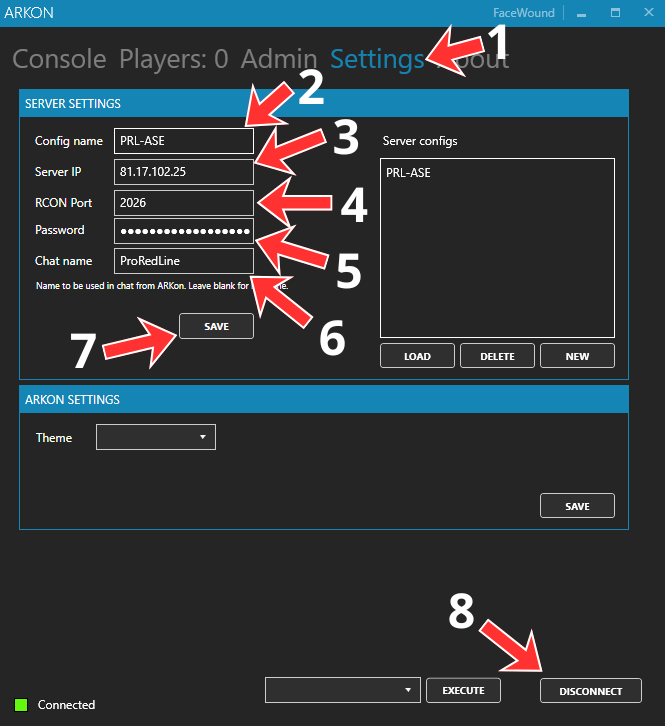
We recommend the ARKon client, but most other clients can be used as your ProRedLine Ark Survival Evolved RCON client. To connect to your server using ARKon, follow these steps:
- After starting your Ark Survival Evolved server, start ARKon (or your preferred RCON client) and go to the ‘Settings’ tab.
- Give this configuration a name within ARKon. This is only visible within ARKon, not on the Ark Survival Evolved server.
- Fill in the game server’s IP address.
- Fill in the game server’s RCON port. This can be found in the game server’s control panel ⇒ startup ⇒ RCON PORT.
- Fill in the game server’s ADMIN Password. This can be found and changed in the game server’s control panel ⇒ startup ⇒ ADMIN PASSWORD.
- Fill in the chat name users will see as the sender when sending in-game messages through ARKon.
- Save your configuration in ARKon.
- And finally, connect with your game server.
Now you will be able to use all ARKon features on your Ark Survival Evolved server.
Still need help after reading this article?
